
Give field participants the minimum access needed for their assigned work. Separate the ability to submit a text or photo from permission to view project records, edit authoritative data or approve an action. Verify identity, scope access by job and review it when a person’s role or assignment changes.
What to take away
- Submission, viewing, editing and approval are different permissions.
- A known phone number is not sufficient proof for every sensitive request.
- Test access removal as well as invitation.
Start with the action, not the job title
A foreman may need to submit a daily update and review their draft. A subcontractor may need to answer one request without seeing another subcontractor’s records. An office reviewer may need to approve an output without changing the underlying source. Model these as actions and project scope rather than one broad field-user switch.
Write a small permission matrix and have the people responsible for each workflow review it. Include who can invite someone, change their role and remove access. A convenient text entry point should not create an undocumented path around the company’s existing project permissions.
Separate participation from authority
Illustrative permissions below are a planning tool, not a statement of the default behavior of any product. Confirm the exact configured controls during implementation.
| Action | Purpose | Boundary |
|---|---|---|
| Submit a field update | Send information for an assigned job | Does not imply access to all reports |
| View a record | Read permitted project information | Check attachments as well as text |
| Correct a draft | Propose or make an allowed correction | Keep authoritative edits separate |
| Approve an action | Authorize a defined output or commitment | Restrict to designated roles |
| Invite or remove | Change participation | Verify the requester and record the change |
Handle changed numbers and ambiguous identity
A phone number is useful context, but phones can be shared, reassigned or changed. Define the verification needed before disclosing sensitive information or changing access. If someone texts “I am the new superintendent,” route the request to the authorized project owner rather than granting permission from the message alone.
When a person changes employers or projects, review their participation. Stop future notifications to the old contact and verify that links and stored access follow the intended policy. Keep private worker information and commercial records out of broad project channels unless the audience is appropriate.
Test the access you intend to deny
Try a participant submitting to an unassigned job, requesting another project’s documents and opening an attachment after their access is removed. Test both the conversation path and the destination link. A hidden navigation item is not an access-control check.
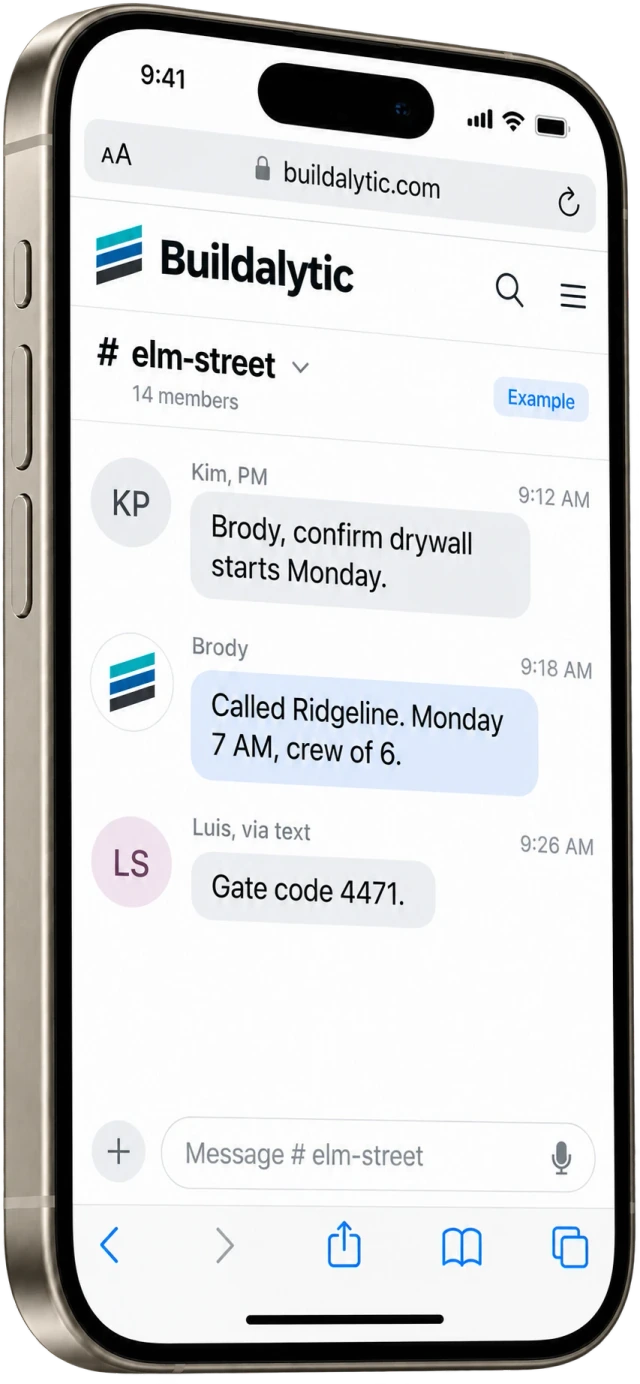
Buildalytic’s team-chat page describes project channels and messaging with Brody. Bring your role matrix to a demo and ask to see actual submit, view and approval behavior for each participant. Confirm the supported controls and any limits before inviting the wider field team. A clear boundary makes it easier to let people contribute without opening unrelated records.
Sources: Buildalytic: team chat
Common questions
Can a worker text a report without a paid office seat?
Check the current plan and configured participant role. Pricing and permission are separate questions: a free participant should still have a clearly scoped set of actions.
What should happen when someone leaves a project?
Review their roles, notifications, links and access through the authorized removal process. Verify the result with a realistic access test rather than only removing a name from a list.
Sources and editorial notes
Prepared with AI assistance. Reference date: 2026-10-28. Worked examples are illustrative and are not customer results. Product details can change; confirm the current scope and terms before rollout.
How we prepare and update field notesNeed a blank worksheet? Get the free reporting template and receptionist evaluation checklist.
Try it on your own workflow.
Bring your current process and one difficult example. We will walk through the handoff, permissions and exceptions with you.
Start with the call, text or record your team already handles. Review the expected outcome and the human handoff before choosing a rollout.
Book a workflow demo Explore the relevant capability